Creating Models
A model is what you create, open, save and share here: a single canvas that can hold concepts and relationships (the concept-map notation), stocks and flows (system dynamics), and architecture content, all connected to one another. You don’t choose a type when you create one — you just start adding what you need.
Creating a New Model
Section titled “Creating a New Model”- Click the + button beside “My Maps” in the sidebar — or, if you have no models yet, Create a blank map on the canvas
- The model is created as Untitled and opens in the editor
- Click its name in the header to rename it
Starting from a Sample
Section titled “Starting from a Sample”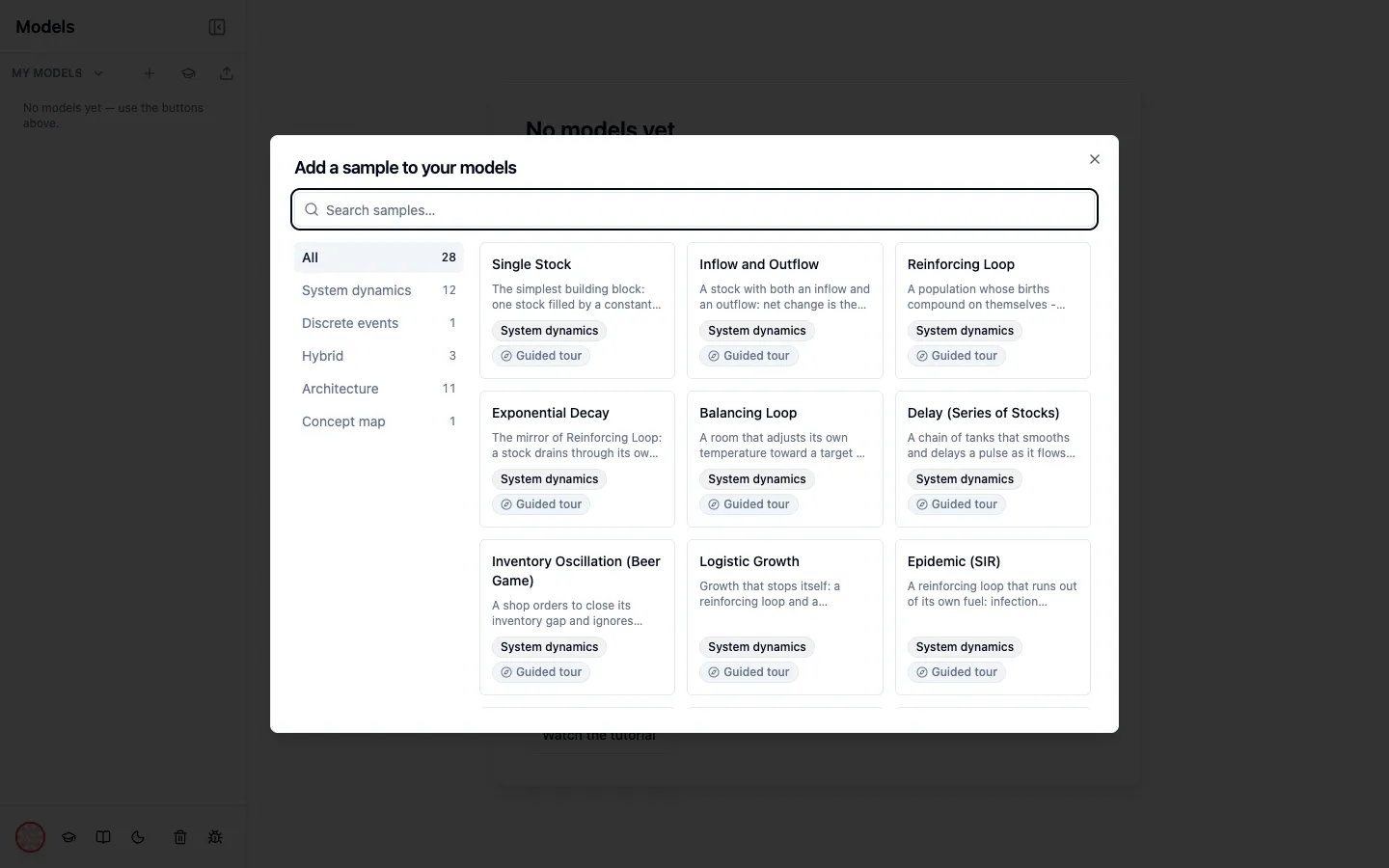
If you’re new to system dynamics or just want a worked example to explore, open the Samples menu — the graduation-cap icon next to “My Maps”, or Browse all samples on the canvas when your workspace is empty. It lists curated stock-and-flow models as a progression, each demonstrating one idea and building on the ones before it — from a single stock and an inflow/outflow pair, through a reinforcing loop and its mirror image, exponential decay, to goal-seeking, delay, and a tipping point a system does not come back from, ending with a full worked model that combines them. Taken in order, they form a short course.
After the stock-and-flow models come four discrete-event and hybrid samples — a single queue, a work pipeline, a retry storm, and a checkout line whose staffing feeds a wage bill — and then the architecture samples, each showing one thing a static architecture diagram cannot:
- Backpressure — a slow database two calls downstream fills the gateway’s threads, although the gateway itself did nothing wrong.
- Queue or Topic — the same stream of messages, shared between a queue’s consumers but copied to every one of a topic’s subscribers.
- Autoscaling — a scaling group that overshoots, sheds instances and settles, because new instances take time to warm up.
- Retry Storm (Architecture) — a brief database outage that eager retries keep going long after it ends.
- Checkout (Architecture) — one service with two operations, where the order of its calls, its cache’s hit rate and how many queries each request makes decide its latency and its databases’ load, though the diagram never changes.
- Flash sale — a burst of shoppers: a cache absorbs the reads, a rate limiter sheds the excess writes, a scaling group adds instances, and a circuit breaker turns a payment provider’s outage into fast failures instead of a pile-up.
- Shop — the same flash-sale architecture, one level up. It opens on its Landscape tab (a Shopper, the Shop and its Payments provider), which draws the Architecture model at system level: the same Shop is a Shop boundary round the flash-sale containers on the Architecture tab. Its tour is the one that teaches the Landscape and C4-PlantUML.
- Flash sale across three zones — the same architecture again, deployed. It opens as one map with two tabs: the Architecture model, and a Deployment model that places its elements in three availability zones of one region, with one zone going down in the middle of the burst. Its tour teaches deploying the system.
- One of three down — N+1. A two-element model, Users calling Service, with Service deployed as one instance of count 3 (three replicas) on the Deployment tab. Two scenarios take one replica down for six seconds: at about half load the other two absorb it, and at about four fifths they cannot, so the queue and the latency climb. Redundancy is only as good as the headroom behind it. Its tour runs each scenario for you.
- Staff and shoppers — correlated peaks from people. It opens on its Landscape tab (Shoppers and Store staff using the Shop). Each person there is the same Person the Architecture tab draws, where the load starts. Store staff all log in at 9:00 and shoppers peak in the evening, split 70/30 across a web app and a mobile app, and the staff peak lands on the Auth service the shoppers share. Its tour ends by detaching the web app from the shoppers to give it a load of its own, which teaches why a client can’t have both.
- Slow responses drive users away — a loop through an architecture. A system-dynamics model sits above the architecture on the same map: users grow by word of mouth, their requests slow the API and its database, and slow responses make them leave. The two layers are joined by two links, one setting how fast the shoppers send requests and one reading the API’s p95 latency back, so the user count settles at the latency users will tolerate, not at what the hardware could carry. Its tour ends by doubling the database’s connection pool, and then warming the cache, and running again to watch that level rise. See Running an architecture with system dynamics.
An architecture sample opens laid out, and with the Model layout already chosen, so the layout button tidies it the same way. Its tour ends by inviting you to change one setting in the inspector and run it again, and says what you should see when you do. The Checkout tour goes further: you open its operations, change their flow four times as you go (calls in parallel, a colder cache, a loop of a dozen queries, and an operation imported from PlantUML), and run after each change. The Flash sale tour has you delete the circuit breaker from the map, point the call at the payment provider directly, and run again, to see the pile-up the breaker prevented. The Shop sample opens on its Landscape tab, and its tour goes from there into the architecture: you see Shop as one box that says how many containers it holds, open the Architecture tab where the Shop boundary is drawn open round them, run the flash sale, and copy the model out as C4-PlantUML. The Flash sale across three zones sample opens on its Architecture tab, and its tour goes from there to the Deployment tab: you follow an instance’s ↗ tab back to its element, press Play and watch zone 1b go down and recover, and end by dragging the Catalog DB instance from zone 1a into 1b to see what a database in a single zone costs.
Selecting a sample creates a new, independent model in your account,
populated with that sample’s structure and annotations, and opens it on
canvas — the same as importing a .stmx file. The sample itself is
untouched, so you can add it again, or edit your copy freely, without
affecting the original.
Your copy does remember which sample it came from. That is the only thing the two share — nothing is kept in sync, and your copy is entirely yours from the moment it is created. It exists so the guided tour below can still be offered when you come back to the model later.
Taking the Guided Tour
Section titled “Taking the Guided Tour”Some samples come with a guided walkthrough — let’s explore this model together — that steps through the model on the real canvas, narrating as it goes, hiding the parts that aren’t under discussion, and running the simulation where the behaviour is the point.
If the model you’re looking at has one, a Tours entry appears in the
top bar’s “⋯” overflow menu. Click it to start. A small floating panel
appears with the first step; use Previous and Next to move at your
own pace, or Play to have it advance by itself. The panel shows which
step you’re on out of how many, and End tour (or Esc) stops it at any
point.
A few things worth knowing:
-
Some tours are read aloud. Where a tour has narration recorded, the voice reads each step while the matching part of the model is highlighted, and the speaker button in the panel mutes it. Muting is remembered for next time, in this browser. The narration text is always on screen either way — audio never replaces it, so a muted tour loses nothing but the sound. Press Pause mid-sentence and it stops where it is; Play carries on from there rather than starting the sentence again.
-
Play advances at reading pace. A step that is read aloud stays up for as long as its narration takes, plus a short beat — whether or not you can hear it, so a muted tour takes exactly as long as an audible one. A step with no recording advances on a short fixed timer, as it always has.
-
The tour changes nothing. It hides and reveals parts of the model as it narrates, but it adds nothing, edits nothing, and deletes nothing. When it ends, the whole model is visible again and it is exactly as you left it.
-
It’s private to you. Someone else viewing the same model at the same time sees the model as normal — a tour is your own lens, not a shared mode.
-
Look around whenever you like. Panning or zooming mid-tour pauses playback rather than fighting you. Pressing Play again brings the canvas back to what the current step is describing.
-
Editing the model ends the tour, and says so. The steps refer to concepts by name, so an edit can leave the walkthrough describing something that is no longer there. The Tours entry stays in the “⋯” menu, so you can start it again whenever you want. A tour that asks you to make changes, such as the Checkout (Architecture) tour, carries on through them instead; it still ends if you rename or delete something it talks about. Your changes stay on your copy: open the sample again for a fresh one.
-
A copy you’ve changed a lot may not be tourable. If you’ve renamed or deleted concepts the tour talks about, it declines to start and names what it couldn’t find, rather than walking you through an empty canvas. It offers to add a fresh copy of the sample; your own model is left alone.
Declining or finishing a tour never uses it up — it’s always there to take again.
Writing Your Own Tour
Section titled “Writing Your Own Tour”Tours aren’t only for the samples. On any model you can edit, Map tours → Edit tours… opens the tour editor, where you can write a walkthrough of your own model and share it with everyone who can see the model.
A tour is a title and a list of steps. Each step has a title, a paragraph of narration, what the canvas should show (the whole model, a set of concepts you’ve selected, or one of your layers), and what it should focus on. Add step creates one from whatever is selected on the canvas, so the usual way to build a tour is to select the part you want to talk about, add a step, and write what you’d say.
If your model has regions, a step can also collapse and expand regions: pick them from the Collapse and Expand lists under the step. Use it to walk readers through a model at the overview level and then “open the black box” on the step where you talk about what is inside. A region is in one list or the other, never both. A step that names none of them simply shows the regions as your layers and the model have them — steps don’t carry over from one to the next. Nothing a step does is saved to the model; when the tour ends everything is as the reader had it.
Steps refer to concepts by identity, not by name, so renaming something never breaks a step. Deleting something does, and the editor marks the affected step with a warning that names what is missing. A tour with no steps is a draft and isn’t offered to anyone until it has at least one.
Everything you do here is undoable, like any other edit to the model.
Narrating Your Own Tour
Section titled “Narrating Your Own Tour”Your tours can be read aloud too, in a voice from your own ElevenLabs account. Everyone who can see the model hears it; only you are billed for making it.
Adding your API key
Section titled “Adding your API key”Narration needs an ElevenLabs API key of your own. Open Settings from the avatar menu (or use Add a key in Settings… in the tour editor’s Narration section), paste your key, and save. The app checks it against ElevenLabs before accepting it, so a mistyped key is reported rather than silently stored.
Where that key is kept, plainly:
- It is stored in this browser only, and in no other. Using another computer means entering it again there.
- It is never sent to this project’s servers, and never to people you share a model with. Your browser talks to ElevenLabs directly.
- Any script running on this site can read it, so a cross-site-scripting flaw in this app would expose it.
- Don’t leave it on a shared machine. Use Forget this key before you walk away — it clears the key from this browser immediately, with no reload, and the narration controls go back to asking for one.
Choosing a voice
Section titled “Choosing a voice”With a key saved, the tour editor’s Voice picker lists the voices in your own ElevenLabs account. Only your own voices are offered, and having the right to use them is yours to hold — this app makes no claim about that.
The voice is stored on the tour, so collaborators hear the same one you did. Changing the voice re-records nothing: every existing clip was made in the old voice, so all of them go silent at once until you narrate again. That is deliberate — no step keeps speaking in a voice the tour no longer uses.
Generating the narration
Section titled “Generating the narration”Narrate all steps shows you what the run will cost before anything is sent: the exact number of characters that will go to ElevenLabs, and how many steps are being skipped. Nothing is sent until you press Generate, and cancelling spends nothing.
Steps that already have a recording matching their current words are skipped, so running it again on an unchanged tour sends nothing at all and says so. Steps with no words are skipped too.
Narrate this step sits beside any step that has no current recording, for when you’ve reworded one line and don’t want to think about the rest. It is the same run, priced the same way: the estimate appears in the narration section above, and still nothing is sent until you press Generate.
Afterwards you’re told how many steps were narrated and, where it can be worked out reliably, how many credits were used. If that figure can’t be trusted — because the reading failed, or because something else on your ElevenLabs account was running at the same time — no figure is shown at all, rather than a guess. Your ElevenLabs dashboard is always the authority.
If a request fails partway through — a revoked key, an exhausted quota — the run stops and reports what ElevenLabs said. Steps narrated before the failure keep their recordings, and nothing half-finished is stored.
What the editor tells you about each step
Section titled “What the editor tells you about each step”- No current recording. The step’s words have changed since it was recorded, or it was never recorded. It plays silently with its caption until you narrate again. This is the whole safety net: a recording can never say something the caption no longer says, because changing the words stops the old recording from being found. Narrate this step is offered right here, once you have a key and a voice.
- Its length was never recorded. The step is narrated, but the app couldn’t measure how long the recording runs, so it gets the standard short pause instead of the time it actually needs. Re-narrating usually fixes it.
- This step cannot be narrated. Its identifier can’t be used as a file name — which only happens to steps that arrived via an imported file. Recreating the step gives it a usable one.
Undo doesn’t bring recordings back. Undoing a change that removed a step restores the step and its words, but its recording is gone for good — the step comes back marked as un-narrated, ready to record again.
What collaborators can do
Section titled “What collaborators can do”- Anyone who can read the model can play your narration, whether or not they have a key of their own.
- Anyone who can edit the model can generate, replace and delete narration — including narration you paid for. Narration belongs to the model.
- Nobody ever gets your key. It never leaves your browser, so there is nothing to share. A collaborator who wants to narrate needs their own key and pays their own bill.
Importing a Multi-Page Model
Section titled “Importing a Multi-Page Model”This app has a single canvas, so a Stella or iThink model drawn across several pages is flattened on import: each page arrives with its own geometry intact, tiled into its own region of the one canvas rather than collapsing onto a default grid. Pages are kept in the order they appear in the file, and wrap onto a second row once a row grows wide enough — so a model with several pages stays roughly screen-shaped instead of running off in one direction.
A variable drawn on more than one page becomes one concept plus a ghost for each extra drawing, so the model is never duplicated. Where the file does not say which drawing is the real one, the first page it appears on wins and the import notes the choice in its diagnostics.
Those pages survive an auto-layout: each page’s contents are rearranged within that page’s rectangle rather than scattered across the canvas. See Regions for what regions are and what a layout does to them.
A Map Can Hold Related Models
Section titled “A Map Can Hold Related Models”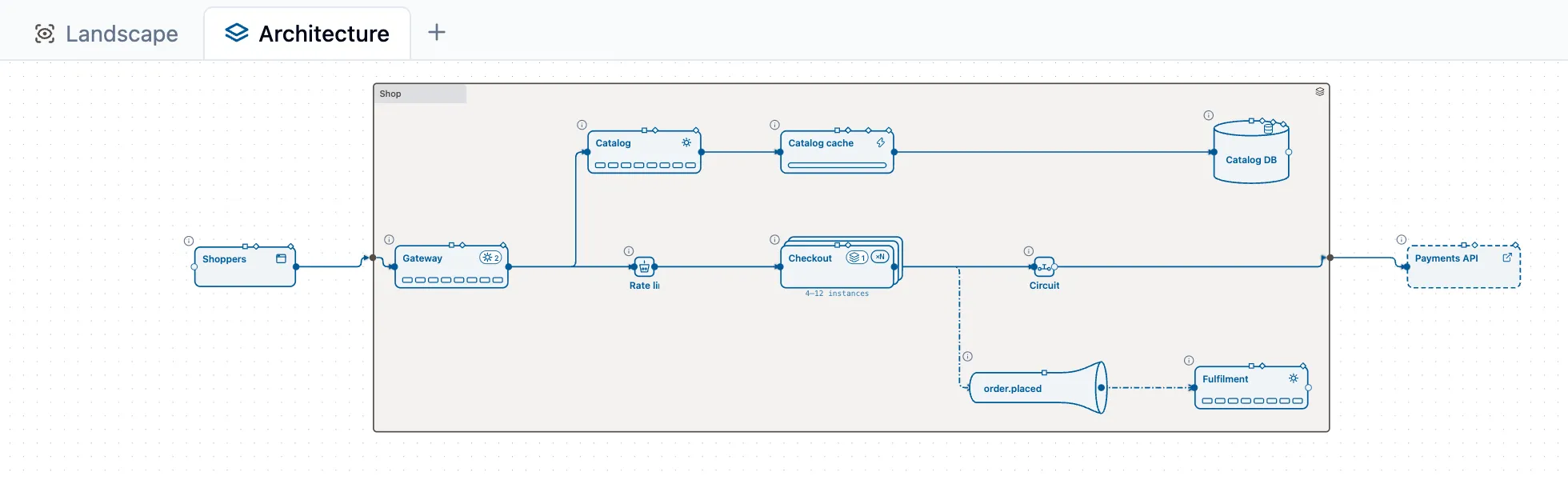
An architecture map describes its systems in one model, the Architecture model: its system boundaries, the services, queues and databases inside them, the people who use them and the outside systems they call. The same map is often worth seeing at other levels too. The Landscape tab draws that one model zoomed out to its systems and how they relate, and a Deployment model says where each element runs. They live in one map, each on its own tab above the canvas, and share one set of permissions, one sharing link, one undo history and one history.
To see the Landscape and the Architecture of one system, open the Shop sample from the Samples menu and take its tour; Shop, grown up shows a landscape of two systems, one with sub-systems inside it. To see an Architecture and a Deployment model on one map, open Flash sale across three zones.
The tabs. On an architecture map, the tab strip above the canvas always shows Landscape, then Architecture, then Deployment if the map has one. Landscape is not a model: it holds nothing of its own, and it is described below.
Adding a Deployment model. While the map has no Deployment model, the strip ends with +. Choose + → Deployment for where each element runs. A map holds one Deployment model, so + disappears once it has one. Undo removes an added model again in one step. If you have drawn in it since, those steps are undone first. There is no other kind of model to add: the Landscape is always there on an architecture map.
Renaming and deleting a model
Section titled “Renaming and deleting a model”The tabs always read in C4 order, top-down: Landscape, then Architecture, then Deployment. Each tab sits where its level belongs, so there is nothing to drag into place. Architecture is still the map’s main model, wherever its tab sits: a map opens on it (a sample may open on its Landscape instead), and the run, tours and perspectives use it.
Once a map has a Deployment model, you can tidy its tab. Right-click the tab (or focus it and press the Menu key or Shift+F10) for Rename and Delete model…. The Architecture tab can’t be renamed or deleted, so its tab offers neither, and nor does Landscape, which is a view, not a model. Neither is available while you are viewing history or if you can only read the map.
- Rename. Choose Rename, type the new name and press Enter. Escape leaves the name as it was. A name can’t be empty, and is limited to 60 characters; a longer name is shortened on the tab, and the tab’s tooltip shows the full name. Two models may share a name. The tab keeps its glyph.
- Delete. Delete model… asks first, and says what goes, for example “This removes 12 instances, 4 regions from Deployment.” A model’s concepts, relationships and regions go with it, along with the aliases and sticky notes that belong to them. Nothing else on the map is touched: the Architecture model, the Landscape, perspectives, tours and operations stay as they are. Deleted rows are moved to the Trash, not erased.
Each of these is one undo step. Undoing a delete brings the model back, with exactly the rows that delete removed, and returns you to the tab you made it on; anything that was already in the Trash stays there. If you empty the Trash first, or a collaborator adds the same kind of model again, the undo restores what it still can or tells you why it can’t.
If you delete a model with a link into another model, nothing is rewritten: the Architecture side simply shows no deployed instances for it until you undo the delete.
The Landscape tab
Section titled “The Landscape tab”The Landscape tab is the Architecture model drawn zoomed out: every system
and how they relate, the C4 System Landscape diagram. It is not a second
model. It holds nothing of its own and copies nothing: it is drawn from the
Architecture tab, so a change there shows here at once, and there is nothing to
keep in step. It has its own address, /map/<id>/landscape, so a link, a
reload, and the browser’s back and forward buttons land on it like any tab.
Every architecture map has it, whether or not you have drawn any systems yet;
an empty one says what would appear there.
What it shows.
- Each system boundary that sits in no other system is drawn closed, as one C4 software-system box with its ports on its edge. The box shows the boundary’s name, and its Description and Technology when it has them: select the boundary on the Architecture tab to set them in its inspector. A box that holds containers says how many (“9 containers”); one that holds only sub-systems says how many of those.
- Each Person is drawn as its avatar badge, and each external dependency as a C4 external system: a dashed box. Any other element outside every boundary, such as a client app, is drawn as it is on the Architecture tab. A plain region round several systems, such as an enterprise (“Acme Retail”), is drawn as a frame round their boxes.
- Every edge on a port is drawn as itself, labelled with the port’s name. An edge that crosses a boundary without a port is drawn as one bundle. Edges inside a box, and delegations, are not drawn. Containers and components are never drawn: they are one zoom in, on the Architecture tab.
Edges run at right angles round the boxes, and their labels wrap, so each label reads as its own edge’s and never covers a box or an arrowhead.
Expand and collapse. A system whose contents are only sub-systems (other system boundaries, plus its own ports) can be expanded from its box: it is then drawn as a frame with each of its sub-systems closed inside it, and those can be expanded in turn. Each port on an expanded system draws its delegation, dotted, to the sub-system that handles it, so you can see where each relationship goes in. A system that holds containers can’t be expanded. Expanding or collapsing lays the Landscape out again.
Model layout and drag. Model layout, the same button as on the Architecture tab, in the controls at the bottom left of the canvas, lays the Landscape out by its connections: callers to the left, what they call to the right, and each edge given room for its label and arrowhead. Drag any box to place it yourself; dragging an expanded system’s frame moves the sub-systems inside it. A frame grows to follow a box dragged inside it, and as on the Architecture tab, everything beyond the edge that grew is pushed out of the way by the same amount: drag a box in one system toward its neighbour and the neighbour, and anything beyond the enterprise frame, slides aside as you drag, for you and for anyone else looking at the Landscape. While you are still dragging, moving the box back inside the frame’s starting size returns the neighbours to where they were. Once you let go, the positions you see are saved with the drag, as one undo step, and nothing pulls the neighbours back later. What you see is saved with the map and shared with everyone who opens it: which systems are expanded and where each box sits. Opening the tab writes nothing. Model layout, an expand or a collapse, and a drag are each one undo step. An expand or collapse replaces hand-placed positions with a fresh layout, and undo brings them back. Nothing here moves anything on the Architecture tab.
Nothing else is editable here. You can’t select, connect, rename, delete or create anything on the Landscape, and clicking a box opens no inspector. To change what it shows, change the Architecture model: add a system boundary, nest one in another, draw a Person or an external, or connect them through ports. The one exception is Add system from another map, below.
Read-only viewers and history. Someone who can only read the map, or who is viewing history, can expand and collapse systems for themselves: the change is their own, is not saved, and resets on reload. They can’t drag or lay out.
Drawing for the Landscape. Everything on the Landscape is drawn on the Architecture tab:
- a system boundary (right-click the canvas and open Boundaries, or set a region’s Role; see System boundaries), nested inside another for a sub-system;
- a Person: right-click the canvas, or drop a connection on empty canvas, and choose Person. It is an avatar badge with its name below it, the one shape whose name sits outside, so it is never mistaken for an architecture client, which is a device card;
- an external dependency, for a system you don’t own;
- and the edges between them, through ports on each boundary they cross.
A Person’s relationship reads uses and is drawn solid, with an arrow, in the
C4 graphite ink. Select it to record a Technology (HTTPS, say), which is
shown on the edge as uses [HTTPS]. A Person can use a client, or a port on
a system boundary. A Person can also carry the load itself, a population or a
traffic profile, and split it across the clients it uses (see
Load that starts at a Person).
Select a Person to edit it: its Description is the text drawn with it. There
are no colour, fill or border-style controls on a Person. Its only simulation
setting is its optional Load; otherwise it only describes, and is never run
(see Simulation). The
Landscape is drawn in light and dark themes alike.
A map with an old Context model. Before the Landscape, a map could hold a separate Context model, kept in step with the Architecture model by links. That kind of model is retired: it can’t be added any more, it has no tab, and nothing reads it. A map that still holds one that was never converted keeps it, untouched, and the Landscape tab offers to move its content into the Architecture tree. To someone who can edit, outside history mode, the tab shows one banner, Convert this map’s Context model. It shows what converting would do before anything is written: each Context software system becomes (or merges into) a system boundary, each Context Person or external becomes (or maps onto) an Architecture Person or external, each Context relationship becomes an edge on a port of the boundaries it touches, and positions seed the Landscape’s layout. Apply writes it all as one undo step, and the Landscape then draws it. A viewer who can only read, or who is viewing history, sees no banner and the Landscape as the Architecture model draws it; the Context content is not shown, and not lost.
Old Context links. A link made before the Landscape still works. The address
/map/<id>/context, an old Context model tab’s address, and a link to a concept
in a Context model all open that map’s Landscape tab, at
/map/<id>/landscape, keeping anything after the path (a follow link, say). A
link to a concept selects nothing, since the Landscape opens no inspector. Back
does not take you to the old address again.
Tours. A shipped sample’s tour can open the Landscape with chosen systems expanded, for that step only: it writes nothing, and the saved state shows again when the step ends.
Using a system from another map
Section titled “Using a system from another map”A larger Landscape can be built from systems that are each detailed on a map of their own. Rather than draw a system again, you use it: the system is defined once, on its source map, and every map that uses it shows it live. One system can be used more than once: as a peer of your other systems on one map, and inside a larger system on another.
Adding one. On the Landscape, in the controls at the bottom left, choose Add system from another map (the link icon). The dialog lists the system boundaries on the other maps you can read, nested ones included; a nested one says which system it sits in. It reads your newest 200 maps, and says so when there are more. Search by the system’s name or its map’s name, pick one, and choose how it stands:
- A system: one of your map’s systems, drawn as any other.
- An external system: out of scope, drawn as an external is, with a dashed outline and the external mark.
Then choose where it stands: at top level, in an enterprise frame, or, as a system, inside one of your own system boundaries as a sub-system. Adding it is one undo step. If it can’t be added (a system on this map, or one whose map already uses this map, which would make a loop), the dialog says why and nothing changes. Only people who can edit the map see the control.
What you see. A used system is drawn as a system box with a link mark by its name; hover it to see which map it comes from. Its name, description, technology and ports are the source’s own, and they update as soon as anyone changes them on the source map, with no reload. A port added on the source map appears on it, unconnected.
It is read-only. You can move it, and on the Architecture tab delete it, but not rename it, re-describe it, change its role, rename its ports, or put anything inside it. To change it, choose Open source map: the hover control on its box on the Landscape, or the item in its menu on the Architecture tab. You go to the map that defines it.
Expanding it. A used system that has sub-systems can be expanded on the Landscape like any other. Its source’s sub-systems, and the delegations from its ports, are drawn inside it in a muted style. They are read-only: nothing inside can be selected or edited, but you can drag the sub-systems to rearrange them. The first time, they are arranged as they are on the source map’s Landscape, or laid out automatically if the source has no saved arrangement. Rearranging them changes only this map: the source map, and every other map that uses the same system, keep their own arrangement. As with any system, expanding or collapsing lays the Landscape out again, and undo brings your arrangement back. An external is never expanded.
Connecting to it. Edges are drawn on the Architecture tab, as for any system. There a used system is a closed boundary with all of its source’s ports (it can be expanded to see inside, below). Draw an edge from one of your elements to one of its ports: the first edge on a port adds that port to this map, and later edges on the same port share it. Each connection is one undo step. Deleting the used system removes it, its ports and the edges on them, in one undo step, and changes nothing on its source map.
Expanding it on the Architecture tab. Use the expand control on a used system’s box to see inside it: the source system’s containers, components, nested sub-systems with their ports, the relationships among them and the delegations from each of its ports to the element that implements it, so an edge you drew to a port visibly continues inside. Persons, external systems and anything outside the used system are not shown. The inside is drawn in a muted style, and it is read-only: you can move any part and resize a container or sub-system, but you can’t rename, retype, delete, connect, re-parent or give a part a port. Each of those is refused with a short notice, by every route (the canvas, a menu, a shortcut). To change it, open the source map. Edges reach a used system only through its ports, so you can’t draw one straight to a part of its inside.
The first time, the inside is arranged as it is on the source map’s Architecture tab, and the box grows to fit and moves its neighbours aside as any boundary does. Moving or resizing a part changes only this map: the source map and every other map that uses the system keep theirs. A part the source never placed is put on a grid. If the source later moves a part into another container, your saved place for it is dropped and the part takes its place in the new one. Changes on the source (a part added, renamed or deleted) show at once, with no reload, and your arrangement does not follow the source after you have moved a part. Expanding, collapsing, moving and resizing are each one undo step, and Model layout carries the inside along with its box. Collapsing keeps your arrangement for the next time. A used system that can’t be shown (its source is missing, you can’t read it, or it would make a loop) and one placed as an external stay collapsed, with the reason on the control. One used system inside another source can be expanded in turn.
In the inspector. Select a used system and the inspector shows what its box shows: the source’s current description and technology, as read-only text under “From” and the source map’s name, with Open source map. That is why they can’t be edited here. They update as the source changes.
When the source can’t be shown. If you can’t read the source map, or the system was deleted there, the used system is drawn as a plain placeholder box with the name it had when it was added. Its ports and edges are kept, and the inspector shows the name and the reason, never the source’s last-known details.
- You can’t read the source map (locked): nothing of the source is shown, and this is not a problem with your map, so it isn’t listed as a warning. If the source is shared with you later, the box becomes a normal used system.
- The source was deleted, or is no longer a system (missing): the box is marked with a warning, and the Consistency panel says why. Everything on your map is kept, and if the source is restored the system comes back unchanged. The fix on offer is to delete the used system.
- A port was deleted on the source map: each edge you drew to it is listed in the Consistency panel and marked on the canvas. Choose Delete the connection, or Attach to another port… to pick one of the system’s current ports. Each is one undo step, and neither changes the source map. If the port comes back, the warning goes.
- A loop made later (a cycle): if someone edits another map so that systems use each other, expansion stops where the loop repeats, and the used system is marked and listed with the maps involved (only maps you can read are named).
Deploying a used system’s containers. On the Deployment tab, Add instance of… and Relink also list the containers of every system your map uses, under a From used system heading naming each system, after your own elements. Choose one and it is deployed like your own: onto a node, into a zone, with a count and failures of its own. The instance is yours and fully editable; the used system is never changed. It shows the container’s current name and technology, which follow the source map with no reload, and a re-parent on the source keeps it linked. Flows between instances (across zones too) include the source’s own relationships between the containers you deployed, and your edges on the used system’s ports. A used system’s container is not applied in a run yet: the element runs undeployed, its instance never counts as capacity, the run’s notes name the instance once, and its tab says “not applied in runs yet”.
If the used system is deleted from your map, can’t be read, would make a loop, or the
container is deleted on the source, the instance stays. Its tab shows the dashed ⚠ with the
reason, the Consistency panel lists it once, and it heals if the container or the usage
is restored (undo restores the same usage; a usage you add again is a new one, so the
instance stays dangling and you re-point or redeploy it). A simulation, scenario or variant comparison, or matrix on a map whose
instance has lost its usage is refused, naming each such instance, until you delete it or
restore the usage.
Simulating through a used system. Press Run on a map that uses another map’s system and the used system runs inside your run. At the press, each source map is read once, as you: the used system’s containers, components, nested systems and their ports, its relationships and every simulation parameter, its retries and timeouts included. A system used twice runs as two independent copies, and a system the used one uses in turn runs too, at any depth. The status bar says “Reading used systems” while it reads; Cancel stops it.
- Only your load reaches it. Load gets in only through its ports, from your map’s flows. The source map’s own Persons and load sources don’t run, and a client inside the used system is built idle. If nothing on your map reaches a used system, it runs idle and the run says so once.
- The source’s own settings don’t come along. Its design sets, scenarios and Deployment model are not applied: its elements run as single, undeployed instances, outside every zone of your map, and a zone outage on your map never touches them. The run says once when the source had a Deployment model. Your map needs no instances for them: a used system’s elements are never “missing an instance”. A call between your deployed element and an undeployed one pays only the latency you set on the edge.
- Results are yours. Expand the used system and its containers show their figures in the Sim panel, its tiles and the inspector, labelled with the system’s name, as in “Identity › Auth”. Collapsed, its ports show throughput and errors as your own ports do, and selecting the system sums up what ran inside it. Nothing appears on, or is written to, the source map.
- When the source moves on. A run uses the source as it was at the press. If someone changes the used system afterwards, the result says so (“Identity changed since this run”): press Run again.
- When it can’t run. The run stops, naming the used system, if it is missing, you can’t read its map, it makes a loop, one of your edges is on a port it no longer has, it makes a synchronous call out through a port you haven’t connected to anything, it calls something outside itself without going through a port, or something inside it would stop its own map’s run (an unresolved port, say).
Sharing a map that uses other maps’ systems. Sharing a map doesn’t share the systems it uses: people see a locked box for any whose map they can’t read. The share dialog warns how many such systems there are, and for maps you manage offers to open their own share dialogs. Nothing is shared until you do that.
Pinning a used system as a copy
Section titled “Pinning a used system as a copy”A used system follows its source live, so your map changes whenever someone edits the source, a run can’t be repeated once the source moves on, and if the source’s owner stops sharing it with you it becomes a locked box. Pinning fixes that: the source map is copied into a new, read-only map you own, and your map uses the copy instead. The copy never changes, so a run through it gives the same results on the same seed after the source has changed, and it stays readable if your access to the source ends.
Only one level is pinned, and the app says so when you pin (and on the copy’s banner): “This map uses N systems from other maps; they stay live in the copy.” If the source map itself uses systems from other maps, the copy keeps those uses live: a run through your pinned system still reads them from their own sources, so it can change when they change, and they become locked boxes if your access to them ends. If you can edit the source, pin its own used systems first to fix the whole chain.
Adding a pinned one. In Add system from another map, the dialog asks Follow the live source, or copy it as a pinned version?. Follow the live source is the default and works as before. Copy it as a pinned version copies the whole source map (its Persons and load included, so the copy can be opened and run on its own), names it “source (pinned copy)”, and adds the system from the copy.
Pinning one you already use. Select the used system and choose Pin as a copy… in the inspector. Everything your map keeps about it moves to the copy: its ports and the connections on them, its parameter overrides in your scenarios and design sets, where you placed its expanded interior, deployed instances of its elements, and tour steps and perspectives that name them. Anything the copy no longer holds (say a port the source has since deleted) shows as dangling, as it would on a live system. Pinning is one undo step; undoing it goes back to the live source and keeps the copy. You can’t pin a system that is already pinned to a copy you made, one whose source is deleted or can’t be read, or one that would make a loop; the inspector says why.
The copy is read-only for everyone, you included. Open it (Open copy in the inspector) and a banner reads Pinned copy of source · copied date · Open parent: Open parent opens the source map, or is unavailable if it has been deleted or is no longer shared with you. Nothing in the copy can be edited, commented on or voted on. (One known gap is open: someone who can read the copy and edit another map can still move an element from that map into the copy. Share a pinned copy only with people you trust until it is closed.) You can still rename it, file it in a folder, share it, and delete it. A deleted copy can’t be restored from the trash: pin the system again for a fresh copy. Deleting the last system that uses a copy keeps the copy.
When the source moves on, refresh the copy. A pinned copy is a snapshot, so it goes stale. When the source’s system has changed since the copy was made, the usage’s inspector and the copy’s banner say Parent changed since this copy (this is worked out when you look, nothing runs in the background; a change elsewhere in the source, such as its Persons, doesn’t count). If you can no longer read the source, they say Parent no longer available and the copy stays as it is. Choose Refresh from parent… to see what would change before anything is written: for each map that uses the copy, the ports added and removed, the edges that would dangle, the overrides and deployed instances that would go stale, and how the usage runs (a refreshed copy holds no published surrogate, so a usage set to run as one keeps that setting and runs in full). It also lists the maps that use the copy and that you can’t edit: they are not changed, and see the refresh as they would any change to a live source. Maps you can’t see aren’t counted. Then Refresh copy replaces the copy with the source as it is now. It keeps its name, place and sharing and stays read-only, and everything in your maps that pointed into it carries across; what the source no longer has shows as dangling or stale, and nothing is deleted. There is no merge, and a refresh can’t be undone: refresh again after fixing the source. Only the copy’s owner can refresh it, and it needs read access to the source at that moment. If a refresh stops part way, the copy says Refresh incomplete; run it again to finish. A refresh replaces the copy’s dashboard panels and run settings with the source’s too. (A copy of a copy, whose source is itself a pinned copy, never shows a change.)
In the sidebar, your copies are gathered in one Pinned copies group in My Models, each marked with its source’s name and the date it was copied, so they don’t crowd your own maps. A copy that is still being made, or that stopped partway, is marked Incomplete copy: nothing uses it, so if the mark stays, delete it.
The map of maps
Section titled “The map of maps”Once maps use each other (live, as a surrogate, or as a pinned copy), no single map shows the whole picture. Map of maps, at the top of the sidebar, does: a graph with a box for each map and a line for each usage, from the map that uses a system to the map it comes from.
- Lines. A solid line is a live usage, a thick blue one a usage of a pinned copy, a dashed purple one a surrogate. A dotted orange line labelled copy of goes from a pinned copy to the map it was copied from. Two usages of one source are two lines.
- Scope. From this map shows the maps the open map reaches, through its usages and through its copies’ parents, and what those use in turn. All my maps covers every map you can read, and is where orphaned copies (copies no usage points at) are found: a copy only counts as orphaned when every map you can read was looked at. It draws only the maps that take part in a dependency, each group of connected maps on its own, the largest first. The rest are one entry, N maps with no dependencies, that opens a scrollable list of their names; click a name to open the map.
- Marks. In a cycle: the maps use each other in a loop. Parent changed: the system a copy was made from has changed since (judged by its content, not by when the map was last saved). Parent no longer available: you can no longer read the map the copy came from, or it was deleted; the copy stays readable. Orphaned. Incomplete copy. On a line, stale is a surrogate that is behind its system, and dangling is a system that is gone from the map it came from.
- Locked and missing. A locked box is a map you cannot read. It shows nothing about the map, not even its name, and what it uses is not followed. A missing box is a map in the trash. Neither opens.
- Going there. Click a map to open it. Click a line to open the map that uses the system with that usage selected.
- Limits. The graph shows at most 200 maps and says when it was cut, and then it is not complete. If a map did not read in time, the note says how many marks could not be checked; Refresh tries again. The view only reads: it never changes a map, and it follows no live updates, so press Refresh after editing elsewhere.
The same graph is available to an agent as the get_map_dependencies tool.
Importing and copying C4-PlantUML
Section titled “Importing and copying C4-PlantUML”Most C4 diagrams already exist as text: C4-PlantUML, the C4_Context.puml,
C4_Container.puml, C4_Component.puml and C4_Deployment.puml kind. Redrawing one element by element is slow, and a model
that lives only here can’t go into a design doc, a PR description or a wiki. So
you can paste a diagram in, and copy a model out.
Importing. On the Architecture or Deployment tab, open the ⋯ menu and
choose Import C4-PlantUML…; on the Landscape tab, choose Import Landscape
(C4-PlantUML)…. Paste the diagram, or Choose a file… (a
.puml, .plantuml or .txt file of up to 200 KB). Nothing is written until
you press Import; Cancel, Escape and closing leave the map exactly as it was.
The diagram decides where it goes, not the tab you were on. A System
Context or System Landscape diagram (C4_Context) goes into the
Architecture model, and shows on the Landscape:
- a
Systembecomes a system boundary, empty, with theSystem’s description and technology as the boundary’s own; - a
System_Boundaryholding systems becomes a system boundary with each of them nested inside it, as sub-systems; - an
Enterprise_Boundarybecomes an enterprise frame, a grouping frame that takes no ports, with the systems it holds nested inside it (and is written back asEnterprise_Boundary); - a
System_Extbecomes an external dependency, and aPersona Person; - a
Relto or from a system becomes an edge on a port of that system’s boundary, named by the label, and aRelbetween two systems becomes an edge from a port on one to a port on the other; - a
Relto a system inside an expanded system, tagged$tags="cmap:port=<outer system's alias>"as the Landscape export writes it, becomes a port on the outer boundary that delegates to a port on the inner one.
A diagram at this level says nothing about what is inside a system, so the imported boundaries are empty and their ports are unresolved: a run stops until you delegate each one to an element inside (see Ports). No other model is created.
A Container
diagram (C4_Container) goes into the Architecture model: a Container
becomes a service, a ContainerDb a database, a ContainerQueue a message
queue, and any _Ext an external dependency. A boundary becomes a system
boundary containing the elements declared inside it, nested boundaries
nested. A Component diagram (C4_Component) goes into the Architecture
model too, as a container holding its components; see
Component diagrams below. A
Deployment diagram (C4_Deployment) goes into the Deployment
model; it has its own rules, described under
Deployment diagrams below. The
dialog tells you which model, and when it isn’t the one you started on, that tab
opens afterwards.
Import brings in structure. It never invents simulation parameters: new elements get the same defaults the palette gives them, for you to decorate.
The review. Before anything is written the dialog lists:
- every element, the existing element it matched (by name, or by the
diagram’s alias, ignoring case and
_,-and spaces) or that it will be created, and the kind it becomes. If it matches several, you choose; you can also re-bind it to another element or choose to create a new one. An element already on the map is never changed, even if its kind differs from the diagram’s: the difference is shown; - every relationship and the edge it becomes, or already on the map (no
duplicate is made). A
BiRelbecomes two edges, one each way; An external dependency makes no calls of its own, so a relationship from one (an e-mail system that “sends e-mails to” the customer, say) can’t be drawn on the Architecture model. The review lists it as left out, with the reason, and it does not block the import; change the element’s kind and it is written; - every boundary, bound to a region of the same name or created;
- every boundary port. A
Relto or from a boundary (Rel(mobile, payments, "pay"), wherepaymentsis aSystem_BoundaryorBoundary) imports as an unresolved port on that boundary, named by the label, with the edge between it and the other element.Rels to one boundary with the same label share a port, and a blank label gives it the name “port 1”, “port 2”, and so on, as a port you make by hand. A port the boundary already has (same name) is reused, not duplicated, and an edge already on the map is shown as already on the map. ARelmarked$tags="cmap:port=<boundary alias>", which is what copying a resolved port writes, imports as that port with a delegation to the element inside, so the port comes back resolved. The review lists every port with its boundary, direction and delegates. In a Container diagram, aRelbetween two boundaries, or between a boundary and an element inside it, is still an error that names the line; - every guess. A diagram can’t say whether a
Containeris a cache or a topic, or whether a call is synchronous, so the import suggests from the technology and label text (Redis suggests a cache, Kafka a topic; “async”, “publishes” and “AMQP” a send) and marks each as a guess. Change any of them before importing. An edge into or out of a queue or topic is always a send, and a relationship with a Person is always a uses edge; those aren’t guesses.
What it tells you it can’t take. Anything the import can’t represent is
listed with its line and column, and never silently dropped. These block
the import: Component_Boundary and dynamic (C4_Dynamic) constructs, Container_Instance and
System_Instance, preprocessor logic (!define, !procedure, !if, variables), a
call spread over several lines, an unbalanced brace, a relationship naming an
undeclared alias, in a Container diagram a relationship between two boundaries or between a boundary and an element it holds, a duplicate alias, and a non-C4 !include. These are shown as
ignored and don’t block: layout hints (Lay_R, LAYOUT_*), title (except
title System Landscape, which the Landscape export writes: it is read, and keeps a
Landscape that holds a Container box at the Context level),
skinparam, legends, styles and tags, sprites and links, and a relationship’s
direction suffix. Tags other than the ones this app writes are ignored with a
warning, not kept.
One undo. Everything the import created comes out with a single Undo.
Copying out. Copy as C4-PlantUML in the same menu copies the model you
are looking at: the Architecture or Deployment model. It works for a viewer and
in history mode too, since it only reads. The text is ordinary C4-PlantUML that
any PlantUML tool renders. An architecture element carries a cmap: tag naming
its kind (and each edge one naming call, send or uses), so importing the text
into an empty map gives the same elements, edges, boundaries and nesting back.
A boundary port is written as a Rel named with the port’s name: to the boundary’s alias while the port is unresolved, and to each element it delegates to, tagged cmap:port=<boundary alias>, once it is resolved; a port with no relationship is not written, and the notice says so. It does not carry simulation parameters, operations, or positions and sizes, and the notice says so. An Architecture model that holds components is written as a Component diagram, and the notice then also says that a container’s technology and its own position are not carried (see Component diagrams). (The Markdown export below does carry positions, in the fence line.)
Exporting the Landscape. On the Landscape tab, Export Landscape
(C4-PlantUML) in the ⋯ menu copies what the tab shows to the clipboard,
with the systems it has expanded, as a C4_Context diagram titled System Landscape (C4_Container, which includes it, when it holds a Container box):
- a
Systemfor each closed system box, with its boundary’s description and technology; - a
System_Boundaryfor each expanded system, round its visible sub-systems; - a
Personfor each Person and aSystem_Extfor each external dependency; - any other box (a client outside every boundary, say) under the macro the Container diagram uses for it, so it is never dropped;
- a
Relfor each edge the tab draws, labelled as the tab labels it. A bundle is oneRel. Where an edge meets a port of an expanded system, it is written as aRelto each visible sub-system the port hands it to, labelled with the port’s name and tagged$tags="cmap:port=<system alias>", so an import rebuilds the port and its delegation.
Containers and components are not in it: they are one zoom in, so copy the Architecture tab for a Container diagram. Importing the export into a fresh map gives the same Landscape back (the same systems, Persons, externals, boundaries and relationships, by name), with every system an empty boundary. A relationship with no label comes back named as a port made by hand (“port 1”).
Downloading a file. To put the Landscape or a Deployment model into a design
doc or a wiki as a file, open ⋯ → Export and choose its C4-PlantUML
item, named as its tab is (C4-PlantUML: Landscape for the Landscape). It downloads <map> - <name>.puml holding the same
text the tab’s copy or export gives, whichever tab you are on. Before the
download, the export lists what the diagram does not carry, as it does for
XMILE, and Download anyway saves it. One with nothing in it says so and
downloads nothing. The Architecture model is copied rather than downloaded.
Exporting as Markdown for @liminis/diagrams
Section titled “Exporting as Markdown for @liminis/diagrams”@liminis/diagrams renders a
```c4 fenced block of C4-PlantUML inline in a Markdown file. To get a whole
map’s diagrams as one document, open ⋯ → Export and choose:
- Export as Markdown (C4): one
<map>.mdwith every model the map has; - Export active model as Markdown (C4):
<map> - <model>.mdwith just the model you are looking at; - Copy as Markdown (C4) and Copy active model as Markdown (C4): the same text on the clipboard, for pasting into a document.
The file has a heading per model, Architecture then Deployment, and under each a
c4 block:
## Architecture
```c4 @layout {"positions":{"customer":{"x":40,"y":120},"shop":{"x":320,"y":120}}}@startuml!include <C4/C4_Container>…@enduml```
Each block is exactly the text Copy as C4-PlantUML gives for that model, so it imports back through Import C4-PlantUML… with the same structure. A model with nothing in it is left out, and the export says so; if no model has anything, nothing downloads. Before a download the export lists what the diagram does not carry, as it does for XMILE. It only reads, so it works for a viewer and in history mode, where it exports what the canvas is showing. It is offered on maps whose main model is Architecture, and not on other kinds of map.
Positions. C4-PlantUML has no place for them, so they travel on the fence’s
opening line as @layout followed by JSON, the convention @liminis/editor uses
for the manual positions @liminis/diagrams accepts. Each element is keyed by its
alias in that block and holds its canvas position (top-left, rounded). Elements
without a stored position are left out; boundaries and deployment nodes are not
positioned, because the renderer sizes them around their members. A renderer that
ignores fence metadata lays the diagram out itself (dagre, in
@liminis/diagrams), and so does any plain Markdown viewer. @liminis/diagrams
sizes its own shapes, so a rendered diagram keeps the canvas’s relative
arrangement rather than its exact spacing. If only some elements have a position,
the renderer anchors those and places the rest around them.
Everything else C4-PlantUML cannot hold is still not carried: simulation
parameters, operations, the links between models, and sizes (and a port with no
relationship; ports with one are written as Rels, as above). An
Architecture model with components is written at Component level: its
container is a Container_Boundary, which has no position of its own, so the
@layout line positions the components and the other elements but not the
container, and the export notice says so.
Importing and copying a component diagram
Section titled “Importing and copying a component diagram”A component is a module inside a container, in the Architecture model (see
Splitting a service into components). C4-PlantUML draws one as
Component(…) inside a Container_Boundary, so a component diagram can be
imported and a model with components exported.
The level rule. A diagram is a Component diagram if it includes
C4_Component.puml or uses any Component… macro, even though it also holds
Container… macros. A Deployment diagram still wins over both. A C4_Context-only
include with Component… macros is reported as a mismatch, with its line.
Container_Boundary means different things at the two levels. In a
Container diagram it is a system boundary, as before. In a Component
diagram it is a container: a region with the container role holding one
service or scaling group plus its components. Import gives that service (or
scaling group) the boundary’s name, so the container card and the region match.
| In the diagram (Component level) | In the Architecture model |
|---|---|
Container_Boundary(api, "API") |
a container region named API, with a container card inside it |
Component(…) |
a component in its container |
Container(…), ContainerDb(…), …_Ext |
the same elements as at Container level, in their boundary’s region |
ComponentDb(…), ComponentQueue(…) |
a database or a queue, placed in the container’s parent region (outside the container), with a warning naming its line |
Component_Ext, ComponentDb_Ext, ComponentQueue_Ext |
an external dependency, in the container’s parent region, with a warning naming its line |
System_Boundary, Boundary |
a system boundary, a plain region; a container can sit inside either |
Rel(a, b) |
an edge; an end that names a Container_Boundary joins that container’s card |
A container’s kind is the one thing a diagram cannot say: the review guesses a service and shows the guess, and you can change it to a scaling group before anything is written. A diagram this app exported states it with a tag, so there is nothing to guess.
Some component diagrams can’t be imported faithfully, and are reported, never
dropped silently. A container inside another container is an error with its
line (a model can’t run one). A Component outside any Container_Boundary
imports with a warning: it belongs to no container, and the model reports
that on the element. A Container(…) inside a container gets a warning too, since
a container holds only its own service and components. Component_Boundary and
C4_Dynamic still block the import.
Exporting. A model with at least one component is exported as a Component
diagram: !include <C4/C4_Component>, and each container region written as a
Container_Boundary holding its Component(…)s. The container card is the
boundary, so it is not written as a separate element, and a relationship to it
names the boundary. The boundary carries the card’s name, its kind as a cmap:
tag (so a scaling group stays one), and its description. A system boundary
nested inside another region is written System_Boundary here, never
Container_Boundary, so importing the text again reads every
Container_Boundary as a container. A model without components is exported
exactly as before.
Importing the exported text gives the same components, containers and relationships back. A region you renamed after creating its container card comes back under the card’s name, since the boundary has one label. A container’s technology isn’t carried, and the export notice says so.
Importing and copying a deployment diagram
Section titled “Importing and copying a deployment diagram”A deployment diagram is not a second description of the system. The elements and their edges live in the Architecture model; the Deployment model only says where each one runs. So importing one does not make new copies of its containers. It makes instances of the Architecture elements you have, and where one is missing the review offers to create it (nothing is created until you accept):
| In the diagram | In the Deployment model |
|---|---|
Deployment_Node or Node (and the _L/_R forms), nested in braces |
a deployment node, nested the way the diagram nests it, with a level |
a Container, ContainerDb or ContainerQueue inside a node |
an instance in that node, linked to the Architecture element it names |
a Rel between containers |
nothing: the review only reports it |
Paste the diagram on any tab; the Deployment tab opens afterwards. If the map has no Deployment model yet, the review says Import creates one, and one undo removes it with everything else.
Each node’s level. A node’s level (region, zone, cluster or host) sets its default crossing latency, so a wrong one changes a run. A diagram can’t say it, so the import guesses and marks every guess for you to change before importing: first from the node’s type text (“AWS Region”, “Availability Zone”, “Kubernetes cluster”, “EC2 instance”, “Server”), then its name, and failing both from how deeply it nests (a top-level node is a region, then zone, cluster, host). A level the diagram states, as the text this app copies does, is not a guess. The review shows the level of each new node as a selector; an existing node’s level is never touched.
Binding each container. The review matches a container to an element of the
Architecture model by name, or by the diagram’s alias (ignoring case and _, -
and spaces). If none matches, it offers to create the element, with the kind
the macro suggests (a ContainerDb is a database, a ContainerQueue a queue; a
cache or topic suggested by the technology text is marked as a guess). Nothing is
created until you import. If several match, you choose. You can re-bind a
container to another element, choose to create one, or leave it out; a
container you leave out is not written at all. The same element named in several
nodes (say Checkout in each of three zones) becomes one element with three
instances. An existing element is never changed, and an element that can’t be
deployed (an external dependency, a rate limiter, a circuit breaker, an Internet node, a component) is never
bound: the review says so and offers a new one.
A Person, a software system or any _Ext element in a deployment diagram has
nowhere to go. The review lists it as left out, with its line and the reason,
and it does not block the import. A container outside every node is imported as
an instance that is in no node. Boundary macros (System_Boundary and the like)
are an error in a deployment diagram: a deployment grouping must be a node.
Relationships are reported, not imported. For each Rel between containers
the review says whether the logical edge already exists in the Architecture
model, or is a mismatch (the two elements have no edge in that direction),
or that it can’t be checked (for example, an element this import creates, so the
edge doesn’t exist yet). A mismatch doesn’t block the import, and no edge is ever
created: edges in the Deployment model come from the logical ones.
Importing again. The import creates and never overwrites. A node that matches an existing one by name (and place in the nesting) and an instance already in it are shown as already there and left alone, so importing the same text twice creates nothing the second time.
Copying a deployment out. On the Deployment tab, Copy as C4-PlantUML
writes a Deployment_Node block for each node (nested as yours are) with its
level, and a container for each instance, named for the element it is of. It
writes no Rels. Importing that text into a map with the same Architecture model
gives the same nodes, levels, nesting and instances, with their counts, back; into
the same map it creates nothing. A node’s failure and crossing latency, an
instance’s own failure, positions and sizes, and the Architecture model’s
parameters aren’t carried, and the notice says so. If an instance’s link is
broken, it is written with its last-known name and kind, and the notice says how
many were. ⋯ → Export → C4-PlantUML: .puml file.
Splitting a component out, and merging a container in
Section titled “Splitting a component out, and merging a container in”The same modules can run inside one service or as services of their own, and the point is to compare the two. Extract and Merge turn one into the other in a single step, so nothing is rebuilt by hand and the two variants share the same elements: ids, names, operations, calls and positions all survive, so a run before and a run after line up element by element.
Add component. Select a service or scaling group and choose Add component from its right-click menu, or from the button in the Inspector. A component is added to its container, and a container region is created around it first if it has none (inside the region it already sits in, if any). The component starts with a service’s default work time, named Component until you rename it, and shares the container’s thread pool. It is one undo step, which removes the component and any region it made. A service that is already in a container just gets another component; a container region that holds something that does not belong in it (a second service, a database) refuses, and says why.
Extract to its own container. Select a component of a container (the Component kind) and choose Extract to its own container from its right-click menu, or from the button in the Inspector. It becomes a service of its own, or a scaling group if its container is one. It keeps its name, operations, calls, incoming edges and position, and gets a thread pool of its own:
- What is copied. Its own parameters stay, and it gets a copy of the container-only ones the container had: the thread count, accept queue, scaling bounds and the like, failure and affinity. A notice after the action lists the ones copied. They are copies: change the container later and the new service does not follow.
- Calls become network calls. A call between it and the container’s other components is no longer in-process, so it is priced like any call between two services: the latency stored on the edge if there is one (it was kept, and applies again), otherwise the deployment default. While the call is in-process, the edge’s tooltip and the Inspector’s Network latency row say In-process: no network latency, and a stored latency is shown as set but unused. After the extract it is active again.
- Where it sits. It leaves the container’s region and joins the region around it, or no region if there is none. The container keeps its region even when this was its last component, and keeps its own operations.
- Instances. In a map with a Deployment model, the new service gets one instance for each of the container’s, in the same deployment node and with the same count and failure, so a run is not stopped for want of an instance.
Merge into container… Select a service or scaling group and choose Merge into container… from the same two places, then pick the container from the list of the others (it can be searched). It becomes a component of that container, keeping the same things: calls between it and the container’s components become in-process again. Its container-only parameters are removed (the notice lists them) and its instances are deleted. If the target has no container region, one is created around it. A container that holds components of its own can’t be merged: the list says so. Extract them first.
Extract followed by Merge into the original container returns exactly what you started with, and each is one undo step. While either runs, other people watching the map never see a component without a container.
Deleting a container. Deleting a service or scaling group that holds
components deletes its components and its container region with it, in one undo
step. (Deleting only the container region is as before: its members are
released, and any components left outside a container are reported as
component-no-container.)
Deploying the system
Section titled “Deploying the system”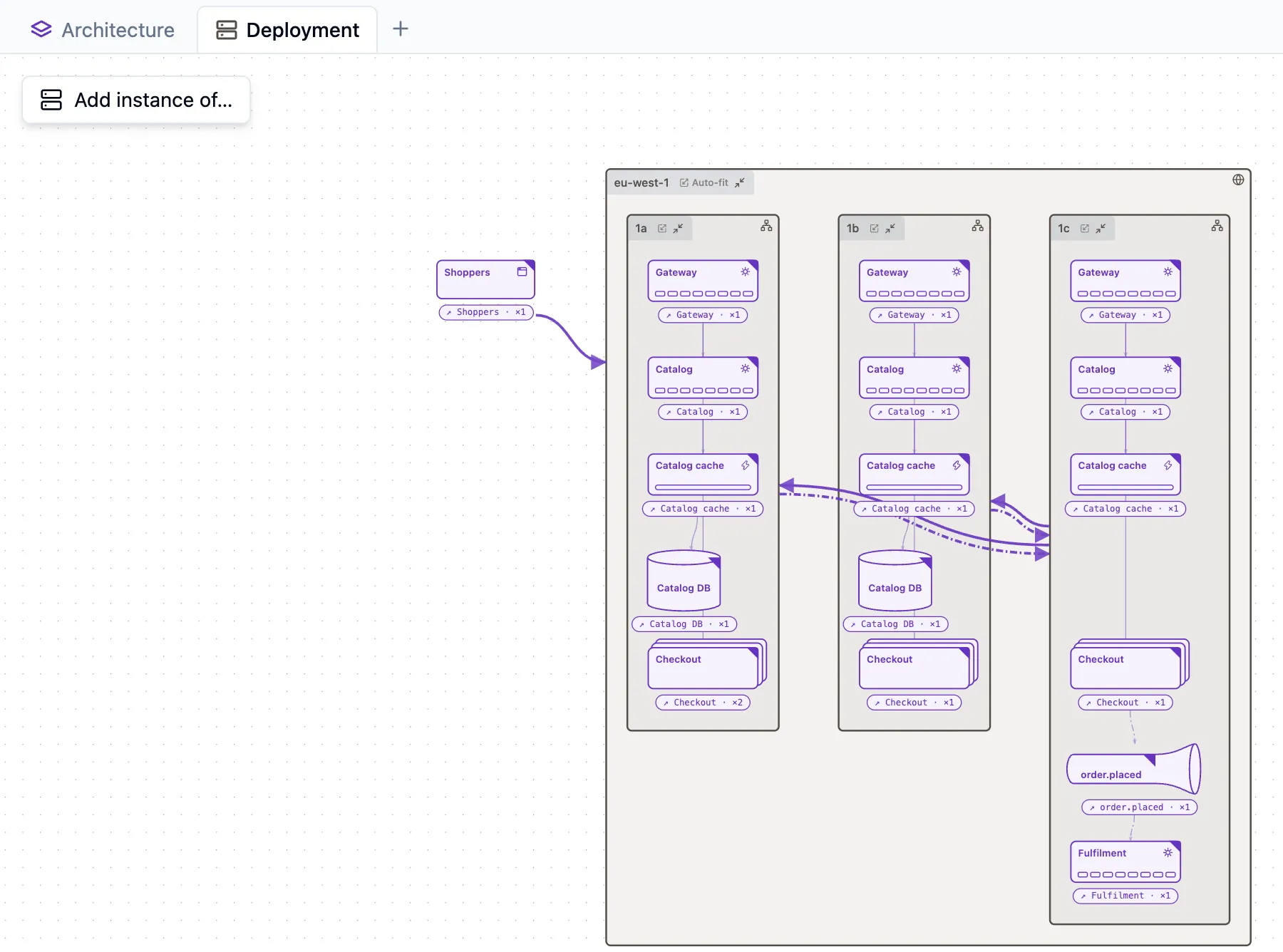
The Architecture model says what the system is made of: services, queues, databases and scaling groups, each with its own behaviour. A Deployment model says where each of them runs. Choose + → Deployment: a Deployment tab appears with the deploy glyph and opens on an empty canvas.
Adding instances. On the Deployment tab, use Add instance of… (the
button at the top left of the canvas, or right-click the canvas) and pick an
element of the Architecture model. The list can be searched by name, and shows
each element’s kind and how many instances it already has. The instance
appears in view, drawn as its element’s own symbol at three-quarter size, in
the architecture ink. A small tab at its top left leads back to the element:
it shows ↗ when you hover or select the instance, and shows its count
(×3) all the time when there is more than one copy. Add as many instances of one element as you like;
each is its own.
Deploying to every zone at once. When the Deployment model has deployment nodes (regions, zones, clusters or hosts), choosing an element in the picker opens a short confirm, and the Deploy… confirm shows the same choices: one button per level the model has, such as Deploy to every zone (3). It puts one instance of the element inside each zone, in one step, at a free spot that clears what the zone already holds. A zone that already holds the element, directly or in a host inside it, is skipped, and a note under the button says how many instances it will add; once every zone has the element the button is disabled. A zone with a fixed size and no room left is skipped, and a notice names it. One undo removes every instance the button added, and one redo brings them back. Place at centre of view still places a single instance. With no deployment nodes, picking an element places it straight away.
Creating the element as you go. If the element you want is not there yet, choose Create new element… at the foot of the picker (or Create “…” when your search finds nothing), give it a name and a kind, and confirm. The element is made in the Architecture model and its instance on the Deployment tab in one step, so one undo removes both, and you stay on the Deployment tab. On the Architecture tab the new element sits to the right of the existing content, unconnected and not laid out; connect it there. Relink in the inspector only chooses among existing elements.
Deploying from the Architecture tab. Right-click an element that can be
deployed and choose Deploy… (it is offered once the map has a Deployment
model). The Deployment tab opens with that element already chosen: confirm
Place at centre of view and the instance appears. The same Deploy… sits
beside a missing-instance finding in the inspector, and in the popover that
opens when you click the finding badge on the element itself, so an undeployed
element is two clicks away from deploying (the badge, then Deploy…).
Clients, services, queues, topics, databases, scaling groups and caches can be
deployed. External dependencies are not yours to deploy, and rate limiters and
circuit breakers live inline with their caller, and an Internet node is a link between places rather than something placed in one, so none of those is offered. A
component has no instance of its own either: it runs wherever its container
does, so deploy the container and its components go with it (an instance linked
to a component is reported as component-instance). To give a component instances
of its own, extract it to its own container.
The Deployment tab’s palette offers only plain Concept, regions and
notes besides: you draw no architecture element from the palette there
(use Create new element… in the picker instead).
What an instance carries. Select an instance to see which element it deploys (a link that opens it), and its two deployment-only settings:
- Count, how many copies run in this placement: a whole number, 1 by
default. The tab at the instance’s top left shows it as
×3. - Failures, the same maintenance windows and random crashes an architecture element can have, for this instance only. The element’s own failures are unchanged.
Operations, threads, work, timeouts and every other behaviour stay on the
element: an instance never duplicates them. A scaling group’s instances
have no count of their own. The group keeps its minimum and maximum, and its
minimum is spread evenly over its instances, with any remainder going to the
oldest first: a minimum of five across three instances reads ×2, ×2 and
×1.
Moving between the two. Hover or select an instance and click the ↗ tab at its top
left to open the Architecture tab with its element selected and centred. On the Architecture tab, an element
that has instances shows a small count (⧉ 2); click it to open the Deployment
tab framed on those instances. Both work for viewers and in history, and
both follow the browser’s back and forward buttons. Renaming the element
renames every instance’s label at once.
Broken links. Deleting an element never deletes its instances. Each one
stays, drawn dashed with its last-known name and a ⚠ tab saying why (hover it for the reason): the
element no longer exists, or it was turned into a kind that can’t be deployed.
Undo the delete and they are whole again. Select a broken instance to
Relink it to another element (it keeps its count, failures and place) or
to Delete instance.
What still needs deploying. Once a map has a Deployment model, every element that can be deployed but has no instance is flagged as an error on the Architecture tab, and the run will not start until each one has an instance: an element with nowhere to run would make the results quietly wrong. A broken instance counts for nothing (if it was an element’s only instance, that element is flagged too) and is itself flagged as a warning. A map without a Deployment model never shows any of these, and runs exactly as it always has.
What the Deployment tab draws. Every call in the Architecture model is drawn between the instances that make it, so you can see which instance talks to which. Nothing here is stored or editable: the lines follow the calls and the placements, and the connection inspector says which call a line comes from.
- Inside a zone a call is a faint line from instance to instance.
- Across zones or regions a call is a heavier line, dashed when it is async. Where a call reaches every instance of its target inside a zone or region, it passes through a single port chip on that boundary instead of fanning out, and likewise on the way out of a zone whose instances all make the call. Ports are drawn for you and can’t be moved or deleted. The lines normally run through the gaps between zones, around any zone they don’t involve. In the few layouts where no gap exists (for example zones stacked vertically with one in between), the line passes beneath the zone instead.
- When you collapse a zone or region, its ports and inner lines fold into the collapsed box, and lines for the same call between the same two ends merge into one. Expand it again and the specific flows return.
What a deployment does to a run. Real systems fail together and pay for distance. Once every element is placed, the Deployment model changes the run:
- Capacity comes from instances. A service with 8 threads deployed as
×2in each of three zones runs 48 threads, 16 in each zone. A database’s or cache’s connections multiply the same way. A scaling group’s size is still its controller’s; the instances only decide where its instances run. - Zones fail together. Put instances in deployment nodes and give a node a failure: while it is down, everything inside it is down, and its share of capacity is lost until it recovers.
- Distance costs latency. A call between instances in different zones or regions pays the boundary’s crossing latency, with no edge latency to set.
- Calls stay in their zone. By default a call goes to the target’s instances in the caller’s own zone, and fails over to another zone only when those are down or full. Set Affinity on the element being called to change that (Zone affinity).
See Running a deployed architecture for exactly how each kind of element is placed, what a run reports per zone, and how to watch a zone go down.
XMILE export still saves the Architecture model only. A .cmap.json export
saves the Deployment model too (see How the models relate).
How the models relate
Section titled “How the models relate”Three tabs, two models. The Architecture model holds the system: one tree of systems, sub-systems at any depth, containers and components, with the people and outside systems around them. The Landscape is that same tree drawn at system level; it is a view, not a model, so it can never disagree with the Architecture tab. A Deployment model, when the map has one, holds the instances of the Architecture model’s elements and the nodes they run in.
What belongs where. Whatever you draw on a model tab belongs to that
model: its concepts, relationships and regions never appear on another
model’s tab, and the reverse holds too. A relationship can never join two
models. The canvas can’t draw one across tabs, and the same rule refuses it
however it is attempted. The one link that crosses models is instance-of,
an instance’s link to its element, which is drawn as the ↗ tab, never as a
relationship. A sticky note can only be added on the main model’s tab for now.
What reads which model. The map’s main model, Architecture, is the one
that runs; its Deployment model, when it has one, decides where each element
runs and what fails together. Simulation, run results, the operations and their sequence views,
guided tours, the Landscape, and the map’s capabilities (its menus and palette)
all come from it, whichever tab is open. XMILE export saves the main model only
too, since XMILE describes one system-dynamics model. When the map has a
Deployment model, the export says it left it out and where it can go:
.cmap.json, or C4-PlantUML. The assistant tools (MCP) can read and change
either model of the map, and read the Landscape.
Checks on the one tree. Where a relationship skips a boundary’s port, the tab strip’s Consistency control opens the Consistency panel, with Route through ports as the fix.
Saving and restoring the whole map. ⋯ → Export → Export as .cmap.json saves every model in one file: each tab with its name and order, and every concept, relationship and region of each, whatever its kind. That includes Persons, Deployment instances and their counts, system boundaries with their description and technology, and deployment nodes with their level, failure and crossing latency. It also keeps each instance’s link to its element. No warning appears about other models, because none is left out. A discrete-event link’s Match patience (with the renege link it leaves by, which is saved as the link’s port), Assemble aggregates and Combine assignments are saved too, and the app’s run now honours them as the assistant tools do. One setting is still not saved, as before: a concept’s colour and style. Set it again after an import. Importing that file creates a new map with the same tabs, each holding what it held, and every instance pointing at the copy’s own element rather than the original’s. A link that was already broken stays broken; it is not dropped. The import review lists each model in the file and what it holds before you import. The new map opens on its main tab.
A file saved with an old Context model (from before the Landscape) still imports, and nothing in it is dropped: the Context model’s rows are written unchanged, and the new map’s Landscape tab offers to convert it. Duplicating such a map copies it the same way.
Boundary ports and their delegations are saved too. A delegation is a connection whose
type is delegates, a value older versions of the app do not know: a file that holds
one validates against the current schema, but an older app may not draw it.
A .cmap.json saved before models were added still imports exactly as it did.
A file saved by a newer version of the app than yours is refused, with a message
naming both versions, and nothing is created.
Moving between them. Each tab, the Landscape included, has its own address, so a link, reload, or the browser’s back and forward buttons land on the same tab. Each model tab keeps its own pan and zoom while you switch back and forth. Undoing a change made on another tab switches to that tab first, so you can see what changed. A link to a concept in the Deployment model, from search, a shared URL or a tour, opens the Deployment tab before it shows the concept. A link to the old Context tab, or to a concept in an old Context model, opens the Landscape (see Old Context links).
Maps that hold a single model, which is every system dynamics, discrete-event and concept map, look exactly as they did before, with no tab strip.
Model Properties
Section titled “Model Properties”Each model has the following properties:
- Name: The display name of the model
- Created By: The user who created the model
- Created At: Timestamp of creation
- Updated At: Timestamp of last modification
Opening a Model
Section titled “Opening a Model”Click on any model in the sidebar to open it. The model will load with all its concepts and relationships preserved.
Deleting a Model
Section titled “Deleting a Model”Right-click on a model in the sidebar and select “Delete”. This action cannot be undone.
Sharing Models
Section titled “Sharing Models”Models can be shared with other users. See the Sharing Guide for more details.